Pulse - Building a Personal Assistant, One Module at a Time
by Bobby Smith - Written on May 19, 2026
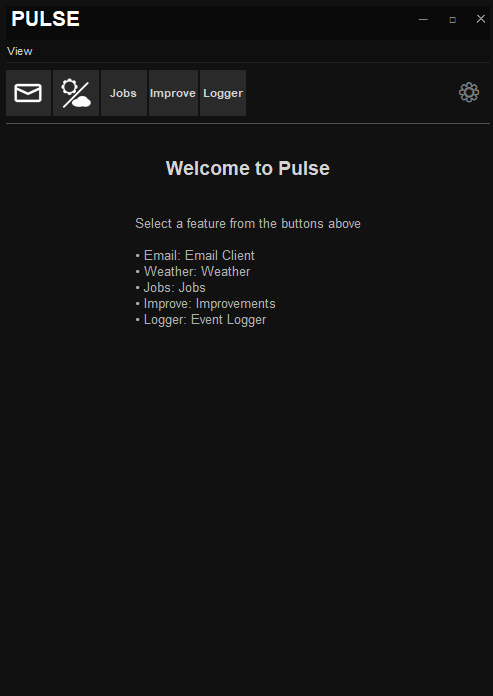
The Pulse client, screenshot taken May 18, 2026
What I Wanted
Over the past few years I've had the idea of a personal assistant like program that allowed me to easily access a large amount of tools, data, etc. directly from my desktop. I've toyed a bit with various Rainmeter setups, other programs, and none of them really scratched the itch fully. So I decided I wanted to try to make something quickly, iteratively, and modularly. And maybe I could use AI to make it happen faster. This is the start of the Pulse client.
The Design Inspiration - Xfire
Since I wanted something so easy to access and always on hand I needed a program format that would be narrow, clean, and easy to move around the screen. So many programs I find that run on a computer desktop follow a 4x3 or similar structure and take up a good amount of the screen. One program that always stuck out to me was Xfire. Xfire was a gaming centric media platform, from the early to mid 2000s, that allowed for chatting, video recording, and many other things. It followed the path of all of the similar AIM based programs of the time. And I always liked the theme of Xfire: dark, sleek, and clean.
The best thing about Xfire was that it had a very modular design. With this when you click on each tab it accessed a completely different toolset. This is exactly what I wanted in order to make my project expandable.
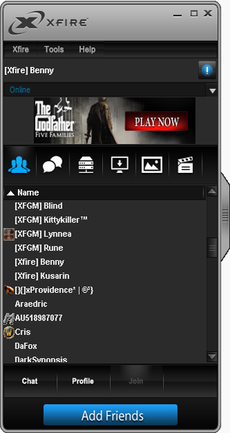
Xfire, from Wikipedia
The Core Idea - Modular and Easy to Use
As stated earlier, the main goal of this program is to be slim, efficient, and modular. I started with the rough idea and what I want it to be able to do. I want to be able to view/edit emails, rss feeds, job search tools, webcomic tools, weather, etc. So I started working on the idea of a basic program. It didn't even have a name yet. I just knew I needed to get started. What I needed was a base program client, an error logger, an email client, and a way to store them all.
The base client was just a wrapper program for everything. It held and kept track of all larger shared systems within the program. This is what ended up becoming the Pulse Client.
The error logger was something that I learned while researching and working on my own engine back in college. When you have a complex system of many interlocking features you need to keep track of when things happen and when things go wrong. This is what "Logger", my name for the event logger, will be taking care of. I needed a logging system that all aspects of the program can tie into and it reads it to an easy to read and parse file format.
The email client would be my first module or "Feature". Note: (This naming convention is one I still need to fix. I feel like using the term "Feature" as this is just messy). This would allow me to learn how to create a nice modular Feature structure that can be used for all other Features.
Lastly I want a systemic structure that allows for easy data handling on all systems. This has been handled by having a "Data" folder within the client's folder that provides a location for all modules and systems to write to. I have every system/feature create and manage its own folders in there.
Once these are set up I can then add on from there.
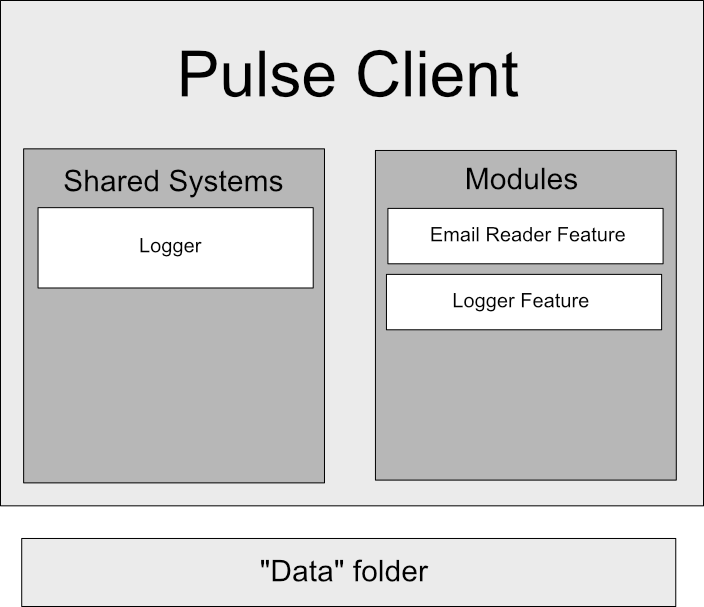
Pulse program structure
The Secondary Agenda - A Lab for AI-Assisted Development
Not only do I want to have this program created and specialized to what I want. I want to use this project as a way to find ways to implement AI into a larger scale than just as a glorified autofill with Github Copilot. This project would be a way to truly get to grips with AI-Assisted development.
Going into this experiment I knew that AI would fail when it came to keeping track of changes over time, making sure it stayed on task when dealing with a large amount of details and complex systems, gracefully come back when it goes bad/misinterpreting my instructions, and deal with all of the coding errors/bugs that crop up.
First things first we need a way to help it, and myself, keep track of changes over time as well as long term goals. From this I talked with it and had it create AI Logs for the base program and all of the individual modules/features within the program. These kept track of what each feature/component did, how they worked, what they did in the large scale of the program, and all of the changes we have done to the program. Every time it makes any change I have it add the necessary change to the related AI-Log. And it did this wonderfully, albeit with a lot of emojis. It loves emojis. Eventually I want to separate the change log from the base AI Log to keep files smaller for easier AI parsing. Change logs rapidly add to the length of these development logs.
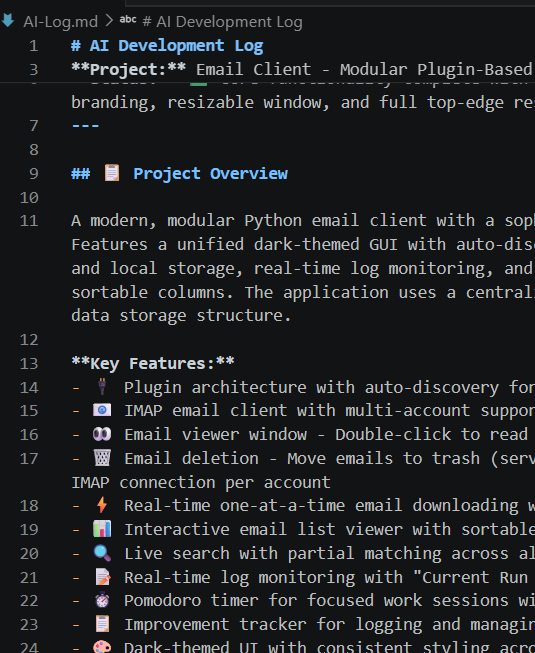
An AI Log for the base Pulse client
Secondly we need to have it stay on task and be able to easily keep track of complex systems with large amounts of detail. Thankfully most of this was taken care of with the AI Logs, but another was handled by my goal for modularity. An AI agent can be set loose easily by having it read the AI logs and only focus on one modular part of the entire whole. This helps it not get too bogged down in too many systems. If we are working on emails, we will only do emails. If we are working on the client, it will only care about the client. And usually whenever we are working on a feature or addition we will only ask the AI to do a very specific small scaled thing. Do not give it enough rope to hang itself as they say.
Thirdly, we need to be able to gracefully come back to some sort of equilibrium when the AI goes rogue and it does what it very much should not have. This is handled via two main systems. Git and Github. Git is heavily used for keeping versions of each individual change we make. Every time we have some sort of stable system we make a commit. This has come in handy when I've misguided the agent and it thought it wanted something, I very much did not want. Thankfully I've only had to use it a few times. And Github is for if it really does go rogue and somehow removed all of my files. Thankfully, and hopefully never, I have never used it.
And lastly, some way to fix all of the bugs/oversights that both the AI and I do not catch. This has been implemented via large amounts of testing of the program, lots of logging everything that happens in the program, and a list of errors/improvements that need to be made in the future. The logger makes keeping track of error logs easy to find and easy to fix. One of the features that made my life lightyears easier was the "Improvement" feature. Whenever I notice something broken, or I want, I can just create an entry file with this feature and feed it into the AI, and an improvement protocol I've created. This has made improvement/bug fixing cycles as easy as telling the AI to read the logs, protocols, and improvement files and give me a list it wants to work on.
My Conclusions
One last thing to say. AI has greatly sped up my ability to put out features quicker than I ever could by myself. It's not something I'd trust to just give a broad goal and let it go to town. But, as a managed toolset it allows for rapid turnaround.
It has allowed me to quickly create a program I've wanted for years, but never set aside the time to create. And AI is something I will be experimenting to utilize in much more creative and less data pushing ways.
If you want more details please continue reading on. If not, goodbye and see you next time.
What follows... - The Development Timeline
That is enough of my ideas. What follows is an AI generated timeline and weekly breakdown of everything that was done on a day-by-day basis. It created this from the AI-Log change logs and git commits.
Pulse Client — Development Timeline
Project period: April 30 – May 18, 2026 (~3 weeks)
Week 1 — April 27 to May 3: Foundation, Email Core & Plugin Architecture
The project started as an IMAP email client, but from day one the intent was to build something bigger: a modular, plugin-based desktop app.
Thursday, April 30 (Day 1):
- Built the core EventLogger library — a reusable daily log system with dual JSON + text storage, color-coded console output, and multiple severity levels. This became the backbone every future feature wrote to.
- Stood up a standalone Logger GUI for viewing logs in real time.
- Created the plugin architecture: a
BaseFeatureabstract class, an auto-discovery system that scans the features directory, and a unified app_main.py wrapper that stitches everything together. Adding a new feature would only ever require creating a new folder. - Shipped the first working Email feature — IMAP fetching, UTF-8/MIME header decoding, local storage under emails, and a Treeview list with sortable columns and live search.
- Added .gitignore to keep email content and logs out of source control.
Saturday, May 2 (a very long day):
- Added the Pomodoro timer — work/break auto-switching, desktop notifications, session counter, custom duration input, and a scrollable layout.
- Created portable launcher scripts (
.batand.vbs) so the app could be launched from a desktop shortcut anywhere on disk. - Refactored email downloading to a real-time one-at-a-time pipeline — emails fetched, logged, and saved individually with
[15/50]-style progress so the app no longer felt like it was hanging. - Added the Email Viewer — double-click any email to open it in a popup window.
- Iterated through two HTML rendering libraries same night: first
tkhtmlview, then upgraded totkinterweb(full CSS3/HTML5 support). Landed on ~7 real email types rendering without errors. - Added timezone-aware date display synced with the user's settings.
- Implemented email deletion — server-side IMAP trash + local trash folder. Discovered and fixed a critical IMAP bug: deletion was using sequence numbers instead of UIDs, so the wrong emails were being deleted. Switched to
UID COPY/UID STOREcommands.
Sunday, May 3:
- Made email deletion non-blocking — deletion runs in a background thread; only the rows being deleted are visually dimmed, the rest of the UI stays responsive.
- Added a Feature Manager — a gear button and dialog where the user can check/uncheck which plugins appear in the feature bar, persisted to
app_settings.json.
Week 2 — May 4 to May 10: UI Redesign, Branding & Feature Expansion
With the functional core in place, the focus shifted to making it feel like a real product.
Monday, May 4:
- Upgraded the Feature Manager to an ordered list with ▲/▼ reorder controls — the position in the dialog maps directly to left-to-right order in the feature bar.
- Shipped the Webcomic Reader — RSS feed management, comic/strip navigation, lazy image downloads, local archive under comics, per-strip metadata JSON, clickable strip titles, and xkcd-style image-title description extraction.
Tuesday, May 5:
- Darkened the color palette to near-black (
#111111) — intentionally Xfire-inspired. - Renamed the app from "Unified Application" to Pulse.
- Replaced the OS title bar entirely with a custom chrome using
overrideredirect(True): aPULSE-branded header, draggable window, hover-red close button, and a custom menu row made fromMenubuttonwidgets instead oftk.Menu. - Applied the same custom chrome to every pop-out window (email viewer, settings dialog).
- Fixed the startup flash caused by tkinter showing its default window before
overrideredirectkicked in — solved with a singleroot.withdraw()on initialization.
Wednesday, May 6:
- Added edge and corner drag-to-resize for the main window — since
overrideredirectremoves all native resize affordance, invisible grip frames were placed over window edges using theplacegeometry manager. - Built the Improvements Tracker — a plugin for logging app improvement ideas, with per-entry JSON storage, category management, sort controls, a "Finish" workflow that archives entries with a
completed_attimestamp, and a finished-entries viewer popup.
Thursday, May 7:
- Added a
descriptionfield to improvements entries (multi-line text, backward-compatible). - Added a Finished Improvements popup to review completed entries.
- Reorganized the improvements action bar into two semantic groups: CRUD on the left, completion workflow on the right.
- Created AI-Log-Protocols.md — a formal "Improvement Session Protocol" document to standardize how future AI-assisted sessions should be run: read logs first, propose a prioritized plan, implement one item at a time, log immediately after each change.
Sunday, May 10:
- Added hover-zoom popup for webcomic images and a dynamic image height cap.
- Added a File → View Folder menu to the improvements feature for one-click access to the data directory.
Week 3 — May 11 to May 17: Job Feature & Improvements Polish
The next push added an entirely new feature category and tightened up the improvements tracker.
Monday, May 11 (another big single-day sprint):
- Built the Job Feature from scratch: a Saved Jobs tracker with status color-coding, Search Profiles with multi-location support, a Job Sites manager with
{query}/{location}URL templates, and a Job Board tab. - Integrated python-jobspy for real job scraping across Indeed, LinkedIn, Glassdoor, ZipRecruiter, and Google Jobs — each fetch runs in a background thread with a live status label.
- Added duplicate URL detection, a broad-search toggle, four additional job sites (Bayt, Naukri, BDJobs, Google), and separated "Downloaded" from "Interested/Saved" job statuses.
- Added full event logging coverage across every method in the feature.
Wednesday, May 13:
- Consolidated improvements category management from three separate dialogs into one Manage Categories popup — matching the settings-dialog pattern used in other features.
Week 4 — May 18 to May 24: Final Refinements
A final session to wrap up the long tail of cross-app polish.
Monday, May 18 (final session):
- Added sortable column headers to every treeview in the Job Feature (all five views).
- Added a Section/Project field to improvements entries — structured tagging by app area (Email, Jobs, Webcomics, etc.) with its own manage popup, sort option, and treeview column. This replaced the manual
"Email - "title prefixing pattern. - Added drag-and-drop reordering to the Manage Features dialog (
⯣drag handle, blue highlight on target row).